 OmniAudio
OMNIAUDIO GUIDE
How to Extract Audio from MP4, MOV, or MKV on Mac
Extracting audio is useful for interviews, lectures, voice recordings, music drafts, and any video whose picture is no longer needed.
Updated: 2026-08-01 · 7 min read
Quick answer
Open Extract audio from video, add a supported video, choose the audio track when the file contains more than one, and export. MP3 is selected by default for broad compatibility.
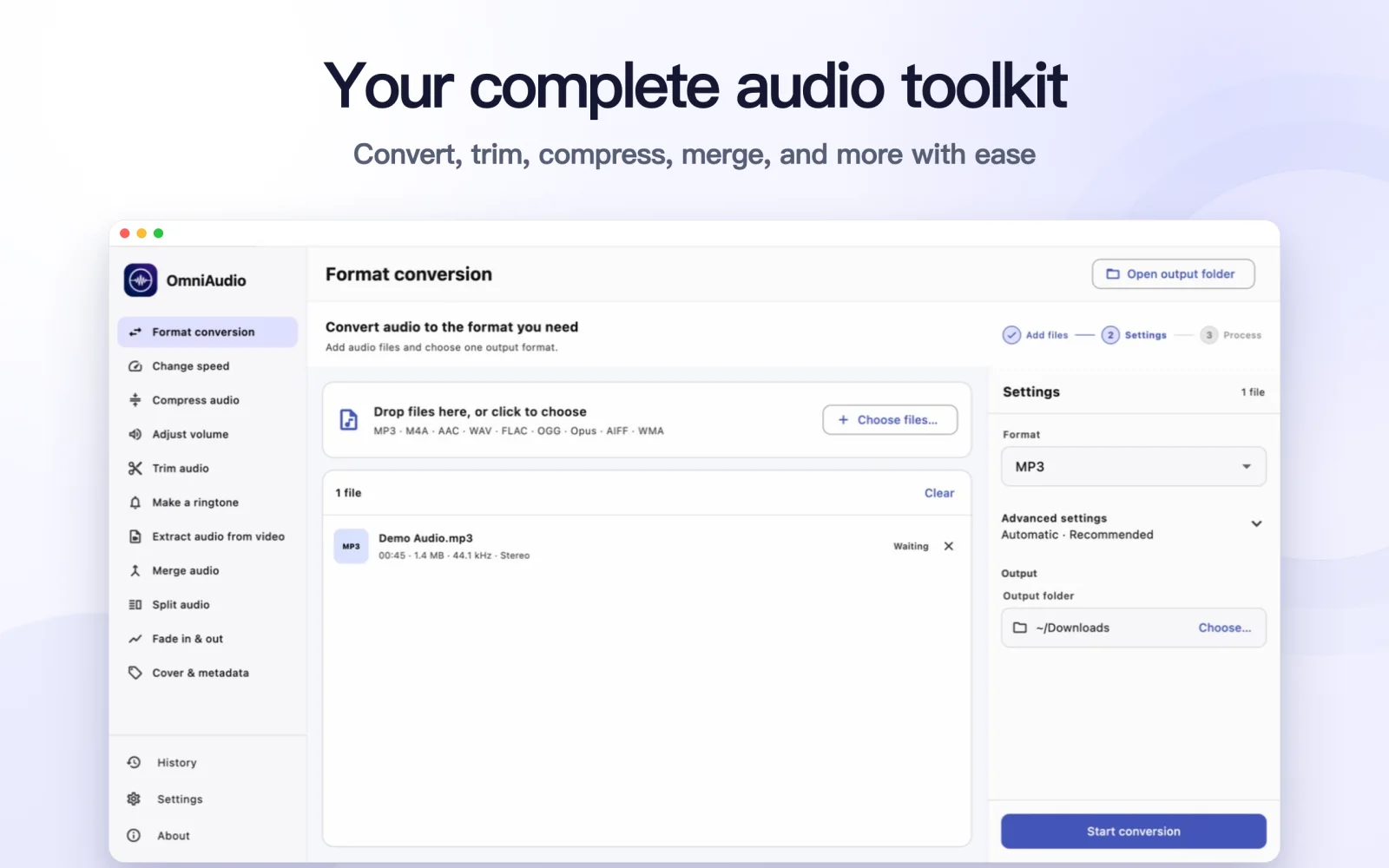
Step by step
Choose Extract audio from video
Open the dedicated extraction tool instead of using general format conversion.
Add the video
Use an MP4, MOV, MKV, AVI, WebM, or M4V file. The app checks for a usable audio stream.
Choose the track if needed
Videos with several language or commentary tracks let you choose which audio stream to save.
Confirm MP3 or another format
MP3 is the default. Open the optional settings only when you need a different compatible format.
Start extraction
Choose the output folder and export the audio as a separate file. The video is left unchanged.
Good to know
No-audio videos cannot be extracted
A silent video or a damaged container may not contain a usable audio stream. OmniAudio reports this instead of creating an empty result.
Compatible audio may be copied
When the selected output container supports the existing codec, the lossless extraction option can avoid unnecessary re-encoding.
Common questions
Can OmniAudio extract audio from protected streaming downloads?
Files protected by digital rights management may not be readable. Use media you are permitted to process.
Does extraction reduce video quality?
No. The source video is not rewritten; OmniAudio creates a separate audio file.