 OmniAudio
OMNIAUDIO GUIDE
How to Convert M4A to MP3 on Mac
M4A works well in the Apple ecosystem, while MP3 is often easier to share with older players, car stereos, websites, and other devices.
Updated: 2026-08-01 · 7 min read
Quick answer
Open Format conversion in OmniAudio, add the M4A file, choose MP3, confirm the output folder, and start conversion. OmniAudio selects an appropriate quality automatically unless you open Advanced settings and choose one yourself.
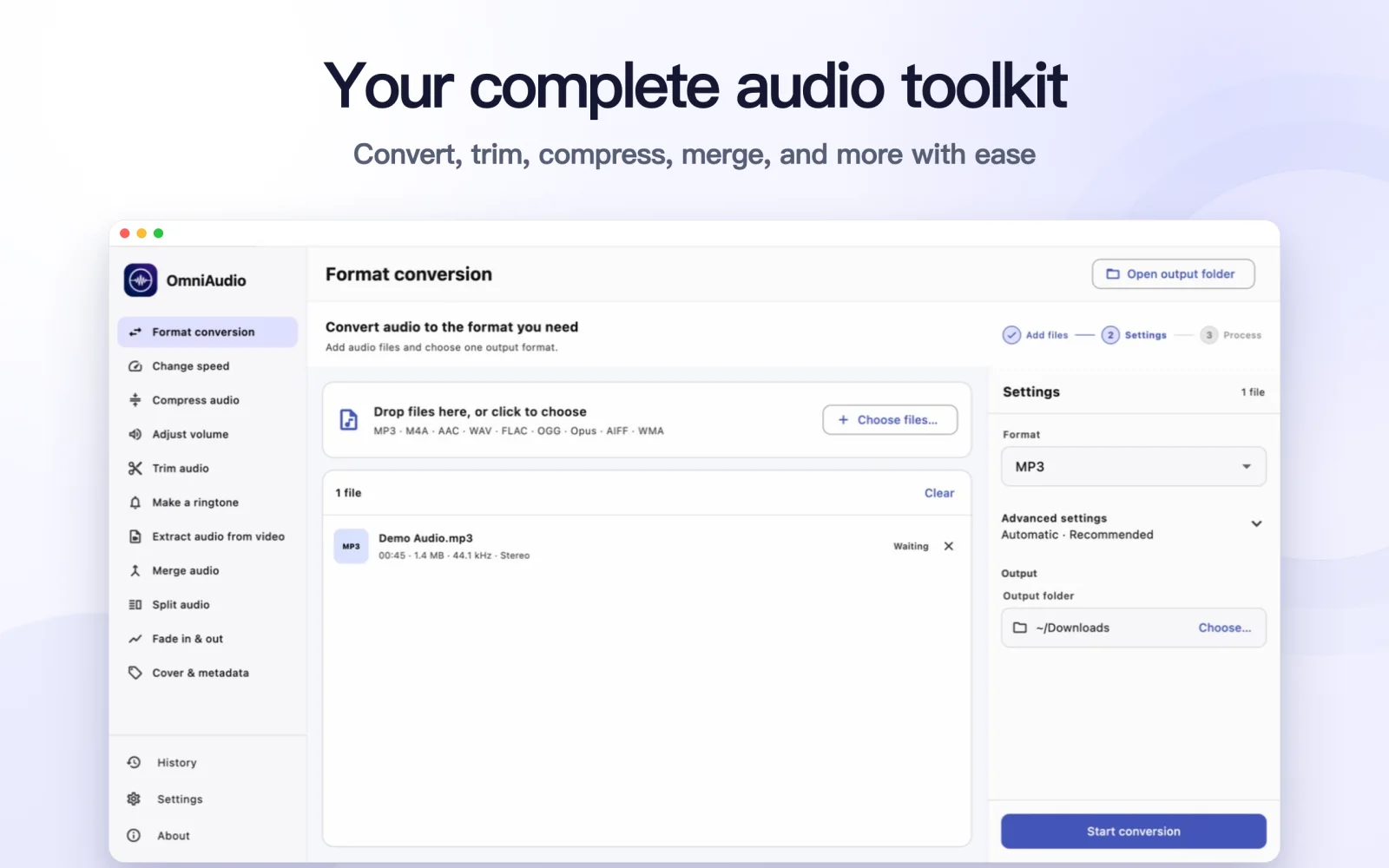
Step by step
Open Format conversion
Launch OmniAudio and select Format conversion in the sidebar.
Add the M4A file
Drag the file into the window or use Add files. OmniAudio checks that the file contains a readable audio stream.
Choose MP3
Select MP3 as the output format. Leave quality on Automatic unless you have a specific bitrate requirement.
Confirm the destination
Review the output folder. Choose another folder if you want the MP3 saved somewhere else.
Start conversion
Select Start conversion. The new MP3 is created without changing the original M4A file.
Good to know
Automatic quality is usually enough
A higher bitrate can increase file size without restoring detail already missing from the source.
Keep the source file
Conversion creates a new file, so keep the M4A until you have checked the MP3 on the devices you use.
Common questions
Does converting M4A to MP3 improve quality?
No. Conversion changes compatibility, not the detail already present in the source.
Can I convert several files at once?
Single-file conversion is free. OmniAudio Pro unlocks multi-file batch processing.