 OmniAudio
OMNIAUDIO GUIDE
How to Edit MP3 Cover Art and Metadata on Mac
Correct metadata makes audio easier to recognize and organize in music players, file browsers, and personal archives.
Updated: 2026-08-01 · 7 min read
Quick answer
Open Cover & metadata, add an MP3, FLAC, or M4A file, edit the fields you need, optionally choose a cover image, and save. OmniAudio copies the audio stream instead of re-encoding it.
Step by step
Open Cover & metadata
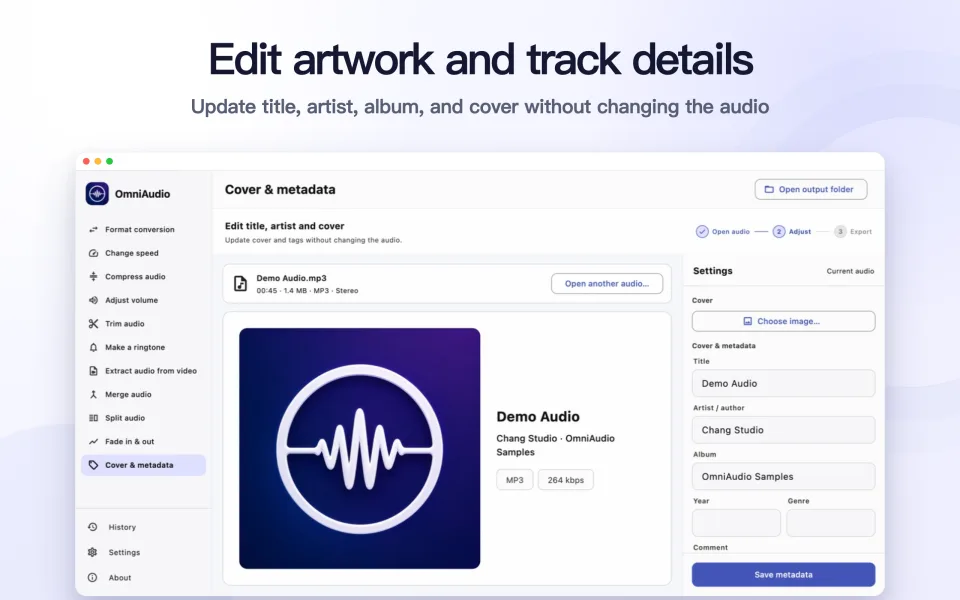
Select the metadata tool and add one supported audio file.
Review the current information
OmniAudio loads the embedded cover and available title, artist, album, year, genre, and comment fields. A file without artwork shows an empty cover state instead of an error.
Edit only what needs changing
Update the relevant fields and leave the others as they are.
Choose a cover image
Select a readable image. OmniAudio validates it and converts it to a compatible embedded artwork format when needed.
Save the result
Create a new file or deliberately choose the overwrite option. The audio content is preserved without re-encoding.
Good to know
Supported containers matter
OmniAudio enables this workflow for MP3, FLAC, and M4A because they can reliably store the supported tags and artwork.
Square artwork is the safest choice
A clear square image displays consistently in most players. Very large source images are unnecessary for a small cover thumbnail.
Common questions
Why is the cover editor unavailable for WAV or OGG?
Metadata and embedded artwork support varies by container and player. OmniAudio limits the editor to formats it can handle reliably.
Will changing tags reduce audio quality?
No. The metadata workflow preserves the audio stream rather than encoding it again.