Presentations and lessons
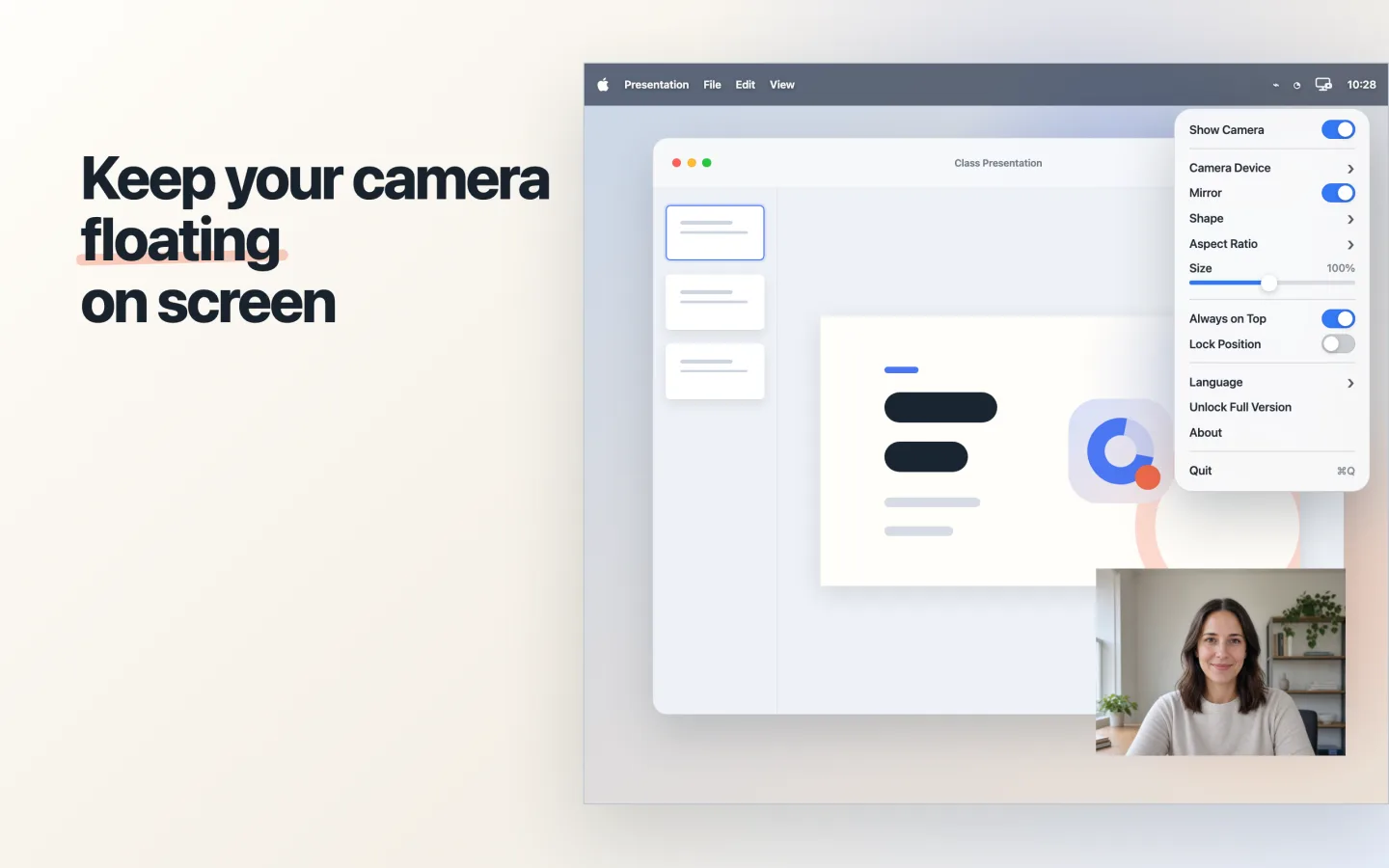
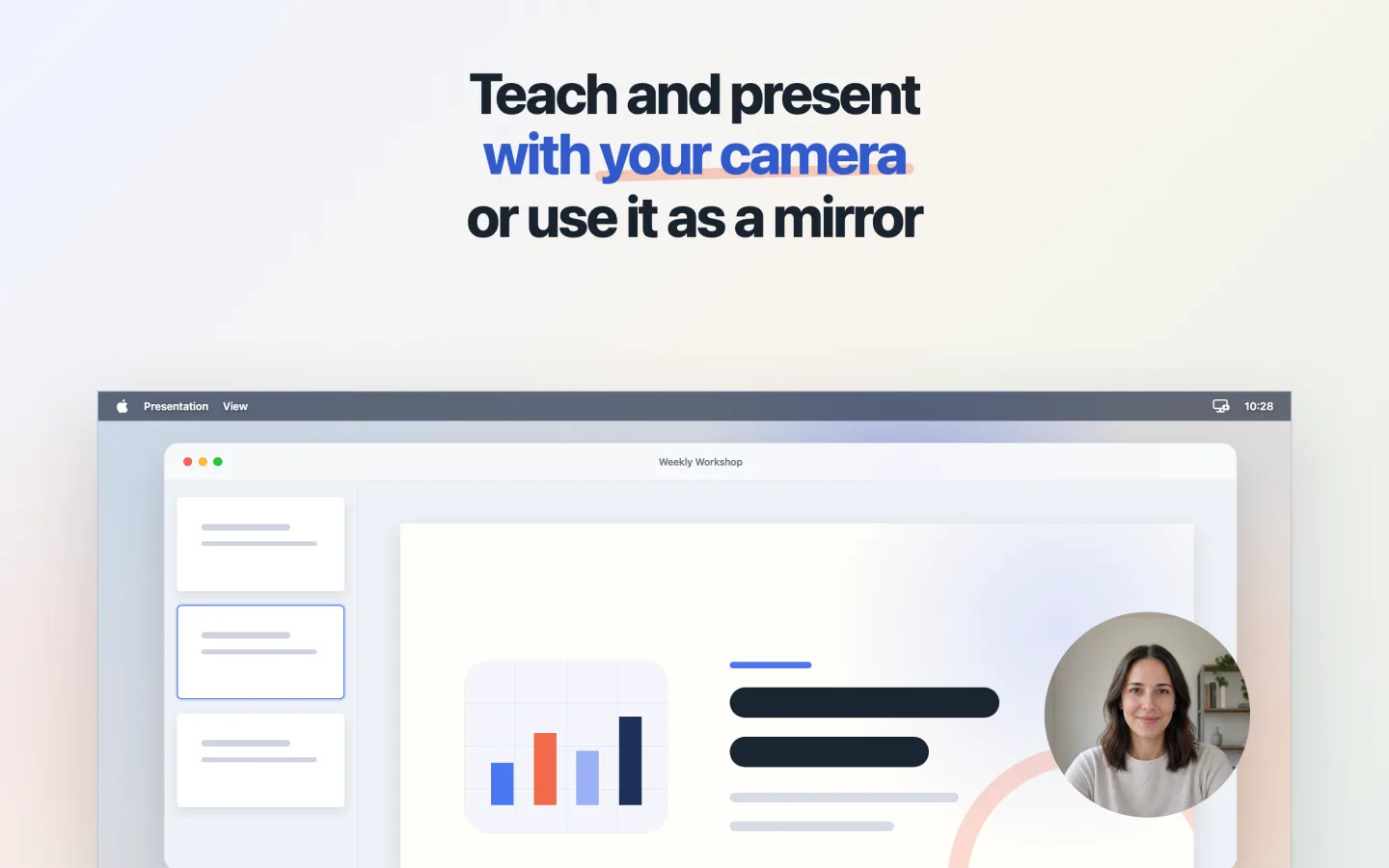
Keep your face beside slides, browser demos, whiteboards, and teaching materials.
 Float Camera
FLOATING CAMERA FOR macOS
Float Camera is a lightweight menu bar app that displays your webcam in a clean, borderless window you can resize, position, and keep above other apps.
Free download · Optional one-time Pro unlock · Requires macOS 13 or later
WHAT IS FLOAT CAMERA?
Use Float Camera beside screen-recording, presentation, livestreaming, meeting, or teaching tools. Float Camera only shows the live camera image—it does not record, save, or upload video.
MADE FOR EVERYDAY MOMENTS
Keep your face beside slides, browser demos, whiteboards, and teaching materials.
Place your camera in the area captured by your recording or streaming software.
Check framing, lighting, or appearance without opening a meeting or recording.
SIMPLE BY DESIGN
All controls stay in the menu bar, leaving only the camera image on your desktop.
Keep the camera visible above slides, browsers, notes, and normal app windows.
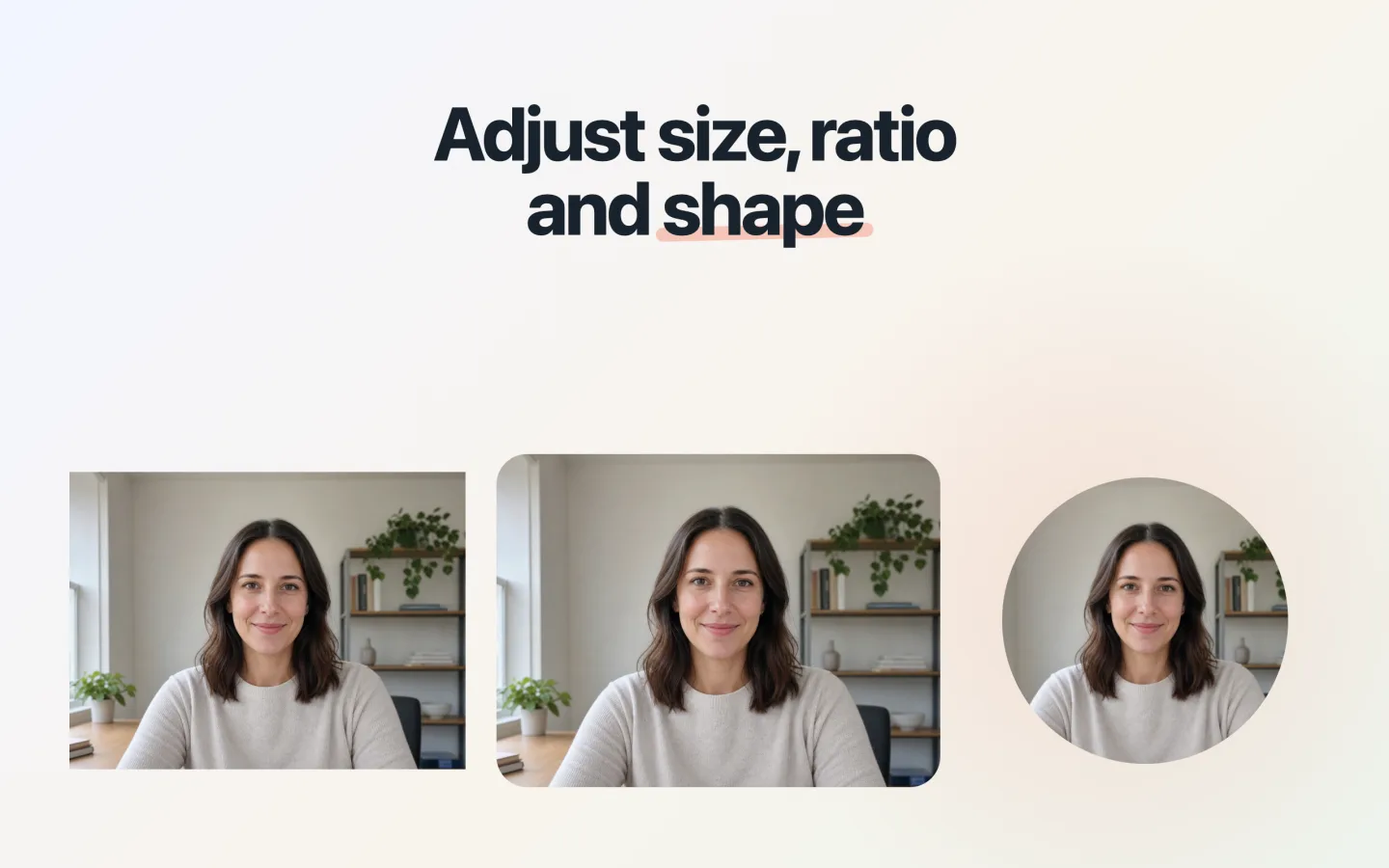
Choose rectangle, rounded rectangle, or circle, plus the aspect ratio that fits your layout.
Adjust size from the menu, drag the window anywhere, and lock its position when ready.
Switch available camera devices and mirror only the image shown by Float Camera.
Turn the camera on or off and change every setting without opening a separate settings window.
Camera video is processed locally and is never recorded, saved, or uploaded by Float Camera.
SEE IT IN ACTION
PRACTICAL GUIDES
Float Camera guide
Place a borderless camera window over your screen, then capture it with the macOS recorder or another screen-recording app.
Float Camera guide
Keep your camera visible beside Keynote, PowerPoint, browser slides, or teaching materials without editing every slide.
Float Camera guide
Open a clean, mirrored camera window for a quick appearance check without starting a meeting or recording.
Float Camera guide
Check macOS camera permission, reopen Float Camera, and resolve the most common reasons a camera window does not appear.
No account, no analytics, and no camera uploads. Read exactly how Float Camera handles your information.
Download Float Camera and place a clean, borderless camera window anywhere on your screen.