
Float Camera guide
How to Use Your Mac Camera as a Desktop Mirror
You do not need to open a video call just to check framing, lighting, or appearance. Float Camera can act as a simple desktop mirror and closes the camera when you turn it off.
Quick answer
Open Float Camera, turn on Mirror, choose a comfortable size and shape, and place the window near the top of the screen so your eye line stays natural. Turn off Show Camera when you are finished to release the camera.
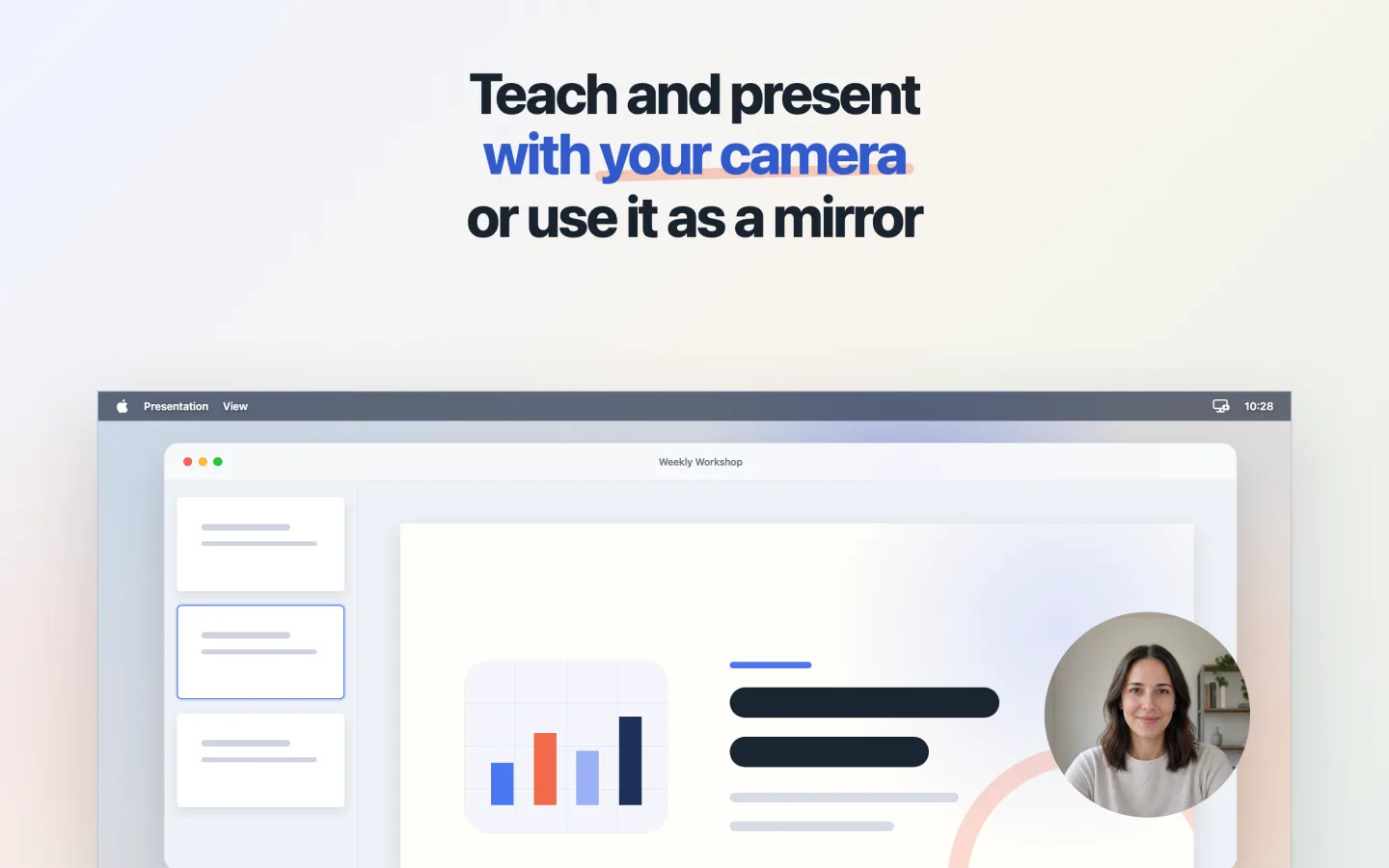
Step by step
Open the camera
Launch Float Camera and make sure Show Camera is enabled in the menu bar menu.
Turn on Mirror
Enable Mirror so movement feels natural, like looking into a familiar mirror. This changes only the Float Camera display.
Choose a useful shape
Use a rectangle for more surroundings, a rounded rectangle for a softer window, or a circle for a compact face view.
Place it near your eye line
A position near the top center or beside the camera makes it easier to check framing without looking far away from the lens.
Turn it off when finished
Disable Show Camera to hide the window and release the camera for calls or other apps.
Good to know
Mirror affects only this window
It does not change the image seen by FaceTime, Zoom, OBS, or other applications.
No image is saved
Float Camera does not take photos, record video, or upload the camera image.
Common questions
Can Float Camera take a selfie?
No. It provides a live mirror-like camera view but does not take or save photos.
Why does another app say the camera is busy?
Turn off Show Camera in Float Camera to release the device, then try the other app again.