 OmniImage
OMNIIMAGE GUIDE
How to Remove EXIF and GPS Metadata from Photos on Mac
Create clean sharing copies of photos by removing GPS, camera, and capture metadata locally on your Mac.
To remove EXIF and GPS metadata from photos on Mac, open Privacy Cleaner in OmniImage, add the images, review the selected files, and create cleaned copies. GPS coordinates, camera details, and capture information are removed locally while the original files remain unchanged.
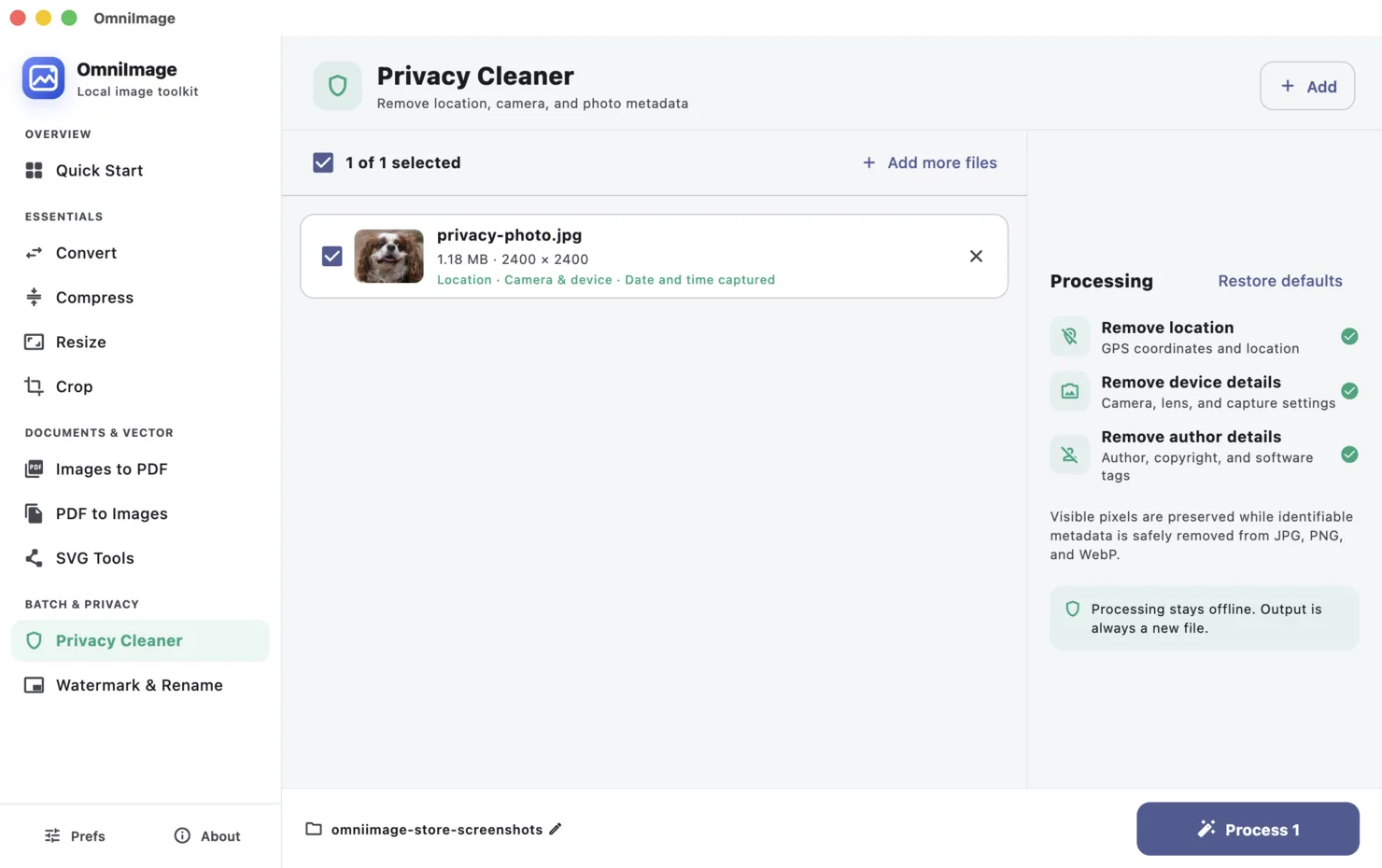
STEP BY STEP
- 1
Open Privacy Cleaner
Choose the privacy tool before uploading or sending photos to people who do not need the capture details.
- 2
Add the images
Select the photos you plan to share. Use copies from a known folder when building a repeatable sharing workflow.
- 3
Create cleaned copies
Choose an output folder and process the selected images. OmniImage creates new files rather than modifying the originals.
- 4
Share the cleaned results
Use the exported copies for messages, listings, documents, or public posts, and retain the originals if their metadata is useful to you.
Choose the right approach
Location
GPS coordinates can reveal where a photo was taken, including a home, workplace, or travel location.
Device information
Camera and phone model details are rarely needed by the person receiving an ordinary image.
Capture details
Dates and technical exposure settings may be useful for photography workflows but unnecessary for public sharing.
Cleaning metadata does not anonymize the picture itself
Removing metadata cannot hide information visible inside the image, such as faces, documents, reflections, signs, or landmarks.
Review both the visible content and the metadata before publishing a sensitive image. Privacy cleaning is one layer of a safer sharing workflow.
Common questions
Will the photo look different?
Metadata removal targets attached information rather than the visible picture. Always review the exported copy before sharing.
Is the location sent anywhere for removal?
No. The file is processed locally and is not uploaded to a server.