Choose a recording
Record with your device’s built-in screen recorder, then select the video in ScreenGIF.
 ScreenGIF
SCREEN RECORDING TO GIF
Turn the important part of a screen recording into a clear GIF. Crop the frame, trim the timing, preview the result, then save or share it.
Designed for iPhone, iPad, Mac, and Android · Processing stays on your device
WHAT IS SCREENGIF?
ScreenGIF takes a recording you already made and turns the useful section into a GIF. It is designed for interface demonstrations, bug reports, short tutorials, product walkthroughs, and any moment that is easier to show than explain.
THREE CLEAR STEPS
No editing timeline to learn. Each screen asks for one decision and keeps the next action obvious.
Record with your device’s built-in screen recorder, then select the video in ScreenGIF.
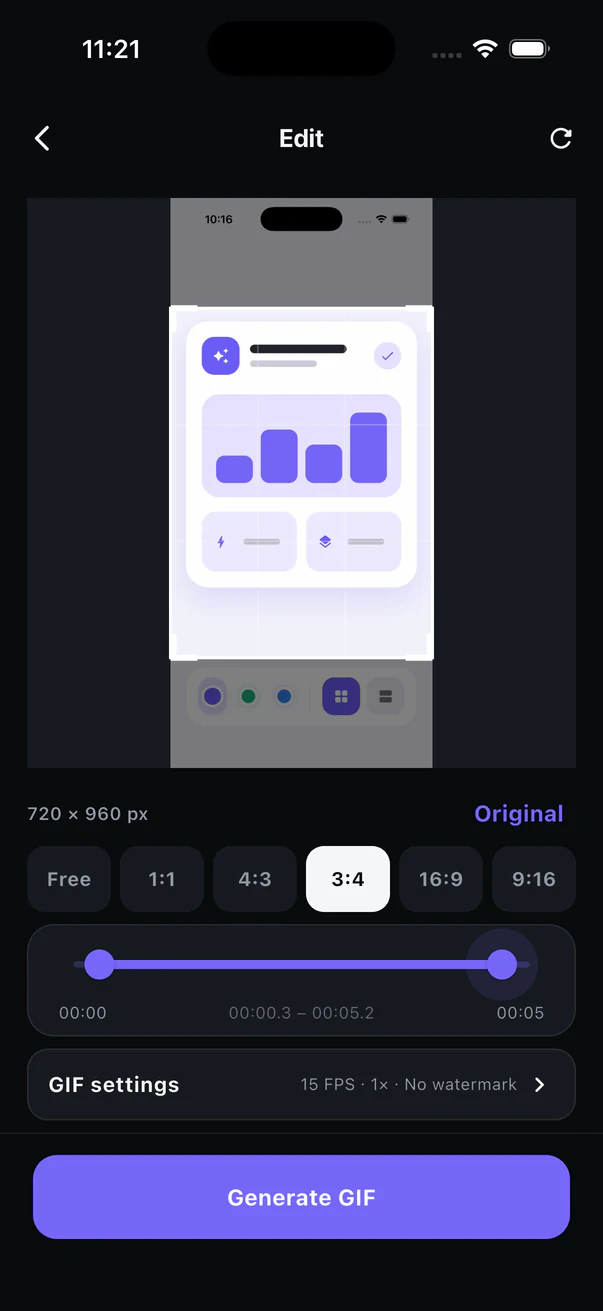
Keep only the useful area and choose the exact start and end of the moment.
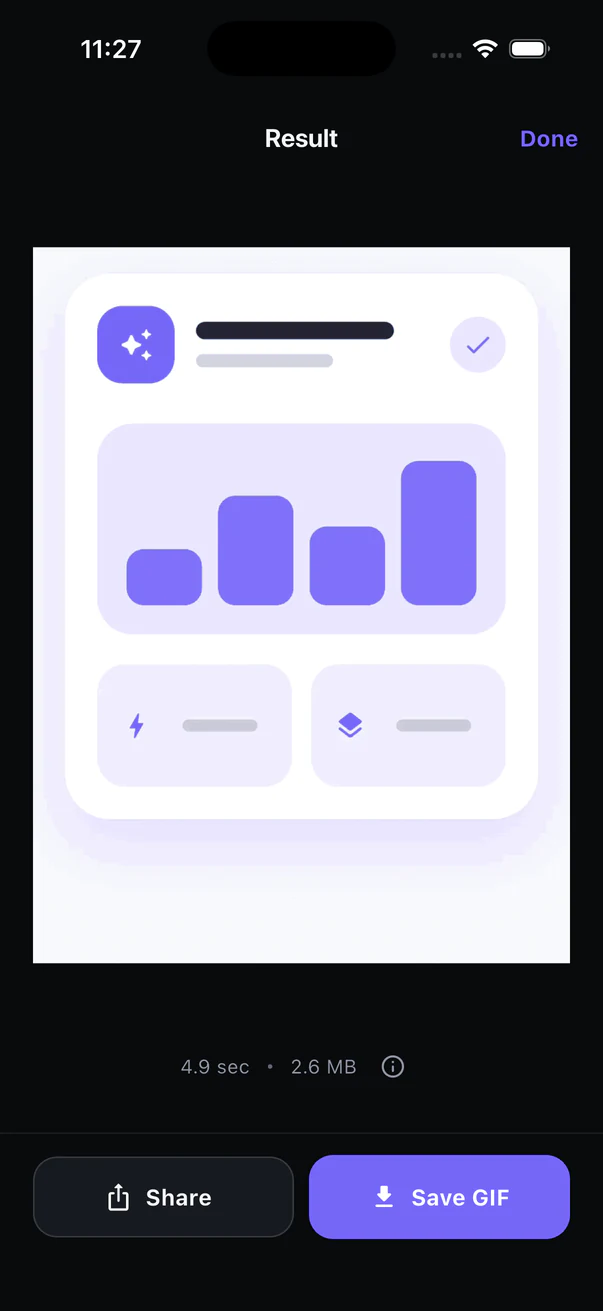
Check the animation and estimated size, then save the GIF or open the share sheet.
MADE FOR SCREEN CONTENT
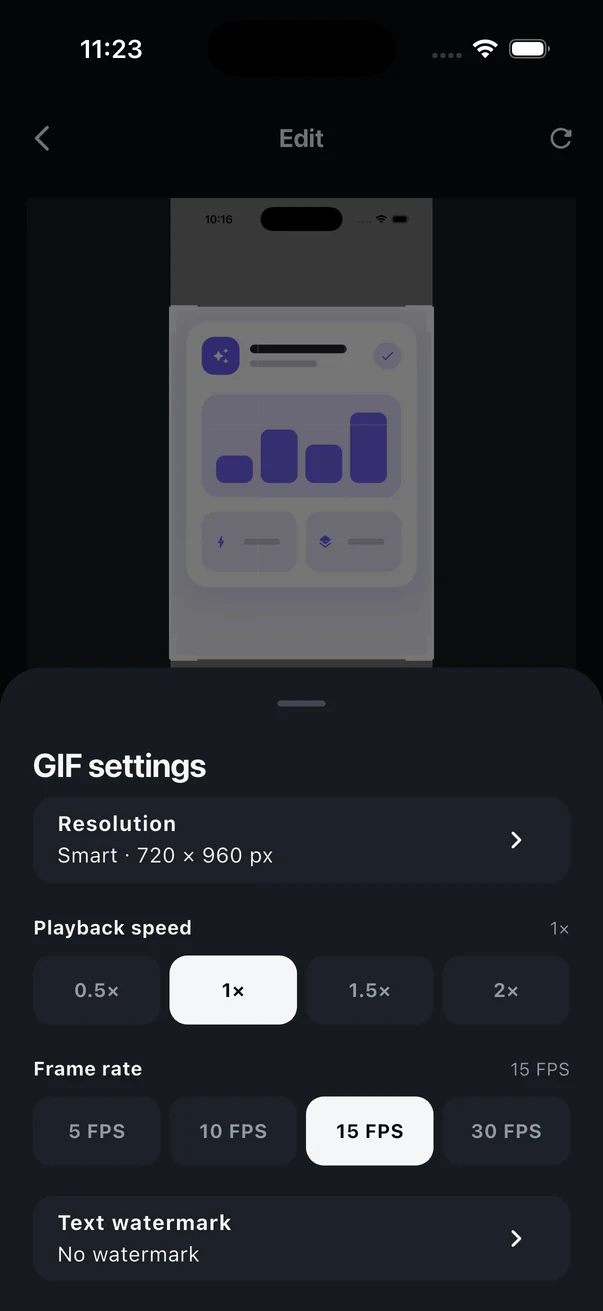
The default path stays direct. More detailed GIF settings are available when a specific result needs them.
Crop freely or start with 1:1, 4:3, 3:4, 16:9, or 9:16 and keep resizing within that ratio.
Move the start and end handles to isolate the action while keeping playback speed unchanged.
Balance readability, memory use, and file size instead of exporting every recording at an impractical source resolution.
Use 15 FPS for most screen demonstrations, or choose another rate when size or motion matters more.
Adjust playback speed and add a text watermark when the GIF needs additional context or attribution.
Open, save, share, or remove recently generated GIFs without turning the list into an editing project library.
THE COMPLETE FLOW
The editing canvas stays prominent while detailed controls remain out of the way until needed.
PRACTICAL ANSWERS
Clear guidance for choosing frame rate, controlling file size, and turning a recording into a useful result.
WORKFLOW GUIDE
Record, crop, trim, preview, and export a screen demonstration on iPhone, iPad, Mac, or Android.
Read guide →FILE SIZE GUIDE
Understand which changes reduce size most without making interface text difficult to read.
Read guide →FRAME RATE GUIDE
Choose a practical frame rate for UI demonstrations, tutorials, bug reports, and fast motion.
Read guide →ScreenGIF creates GIFs locally. Your selected recordings and exported files are not uploaded to Chang Studio.
FREQUENTLY ASKED QUESTIONS
ScreenGIF is an app for turning existing screen recordings into GIF files. It focuses on the useful steps: crop the visible area, trim the moment, choose practical output settings, preview, and export.
ScreenGIF works with a screen recording you select. Record with the screen-recording feature built into your iPhone, iPad, Mac, or Android device, stop the recording, then choose that video in ScreenGIF.
GIF creation happens on your device. Screen recordings and exported GIFs are not uploaded to Chang Studio, and no ScreenGIF account is required.
GIF supports a limited color palette and does not use modern video compression. Some color changes, banding, or less fluid motion are normal, especially in gradients and fast movement.
No. A five-second selection remains five seconds at 10, 15, or 30 FPS. Higher frame rates include more frames in that time, which usually makes motion smoother and the file larger.
15 FPS is a practical default for most interface demonstrations. Use 10 FPS when file size matters more, and 30 FPS only when smoother motion is worth a much larger GIF.
Choose a screen recording, keep the useful moment, and export a result that is ready to show.