 OmniImage
OMNIIMAGE GUIDE
How to Compress Images on Mac Without Uploading Them
Compress JPG, PNG, WebP, BMP, and TIFF images locally on Mac, compare the result, and keep the version that looks right.
To compress images on Mac without uploading them, open Image Compress in OmniImage, add one or more images, process them with the recommended setting, and compare the original with the smaller result before saving. Processing stays on your Mac and creates new files, so the originals remain unchanged.
STEP BY STEP
- 1
Open Image Compress
Choose Image Compress in the sidebar, then drag images into the window or use Add. Importing only analyzes the files; compression starts after you confirm the task.
- 2
Keep the recommended setting first
The default is designed for a useful balance between file size and visible detail. Start there instead of guessing at technical quality values.
- 3
Process the selected images
Choose an output folder when prompted and start processing. OmniImage writes new compressed files and leaves the source images untouched.
- 4
Compare before you keep
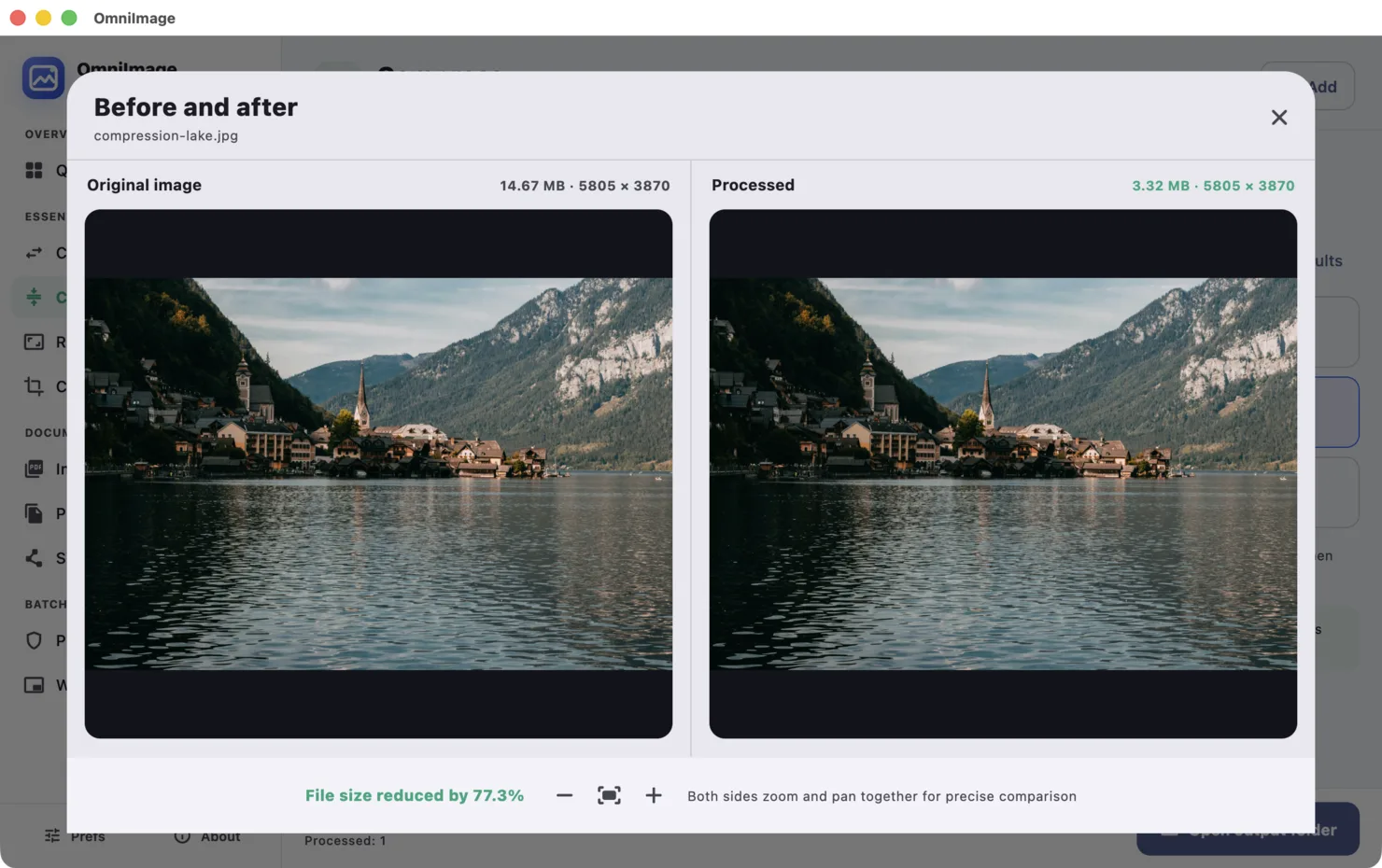
Open the result comparison, inspect detailed areas such as hair, text, gradients, and edges, then keep the result or try a gentler setting if needed.
Choose the right approach
For email and messaging
A visibly smaller file is usually more useful than preserving every pixel-level detail.
For portfolios and product images
Inspect fine textures and text at 100% before replacing a working copy.
For archival originals
Keep the original separately. Compression should produce a delivery copy, not become your only copy.
Why local comparison matters
A percentage alone cannot tell you whether the result looks right. Photos, screenshots, flat graphics, and images with text react differently to compression.
OmniImage shows the visual result together with the before-and-after file sizes, so the decision is based on the image you actually plan to use.
Common questions
Does compression change the image dimensions?
Image compression is intended to reduce file size without acting as a resize task. Use Resize when the pixel dimensions also need to change.
Are my images uploaded?
No. Image processing is performed locally and the source or exported image is not uploaded to a server.