Phone manager for Mac

Photos and files.
Just plug in.

Works with iPhone, iPad, and Android. No developer mode, and nothing to install on your phone.

Coming soon to the Mac App StoreSee what it does ↓

Requires macOS 27 or later · No account · No ads

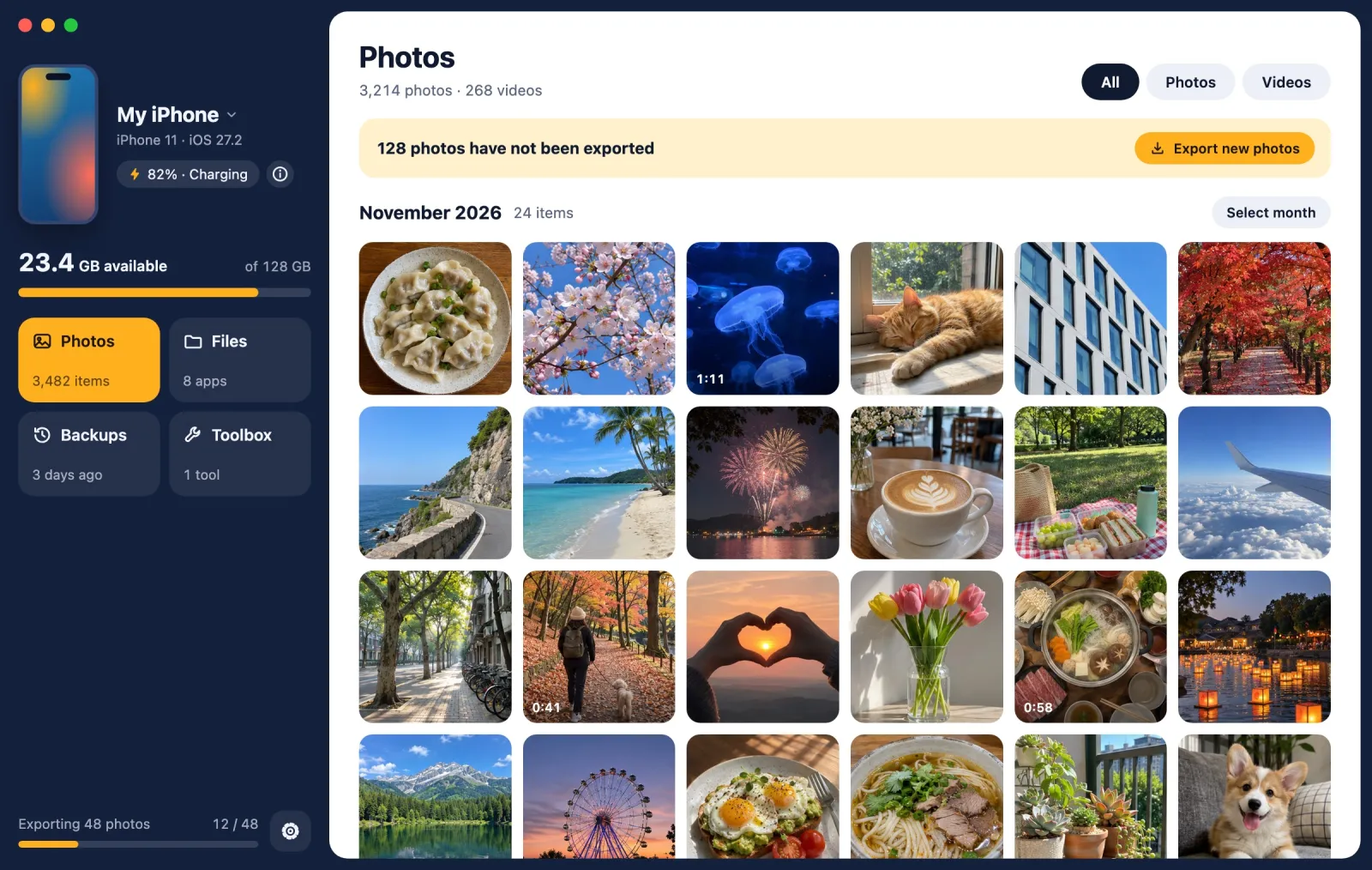
The Photos page in Homeport with a connected iPhone on the left

No developer mode

No USB debugging on Android. Just choose File transfer.

No app on your phone

Everything happens on your Mac. Your phone only needs the cable.

Nothing uploaded

Photos, files, and backups move only between your phone and your Mac.

iPhone, iPad & Android

One app for iPhone, iPad, and Android

Connect more than one device and switch between them at the top left. An iPhone or iPad needs a one-time authorization the first time; an Android phone connects once you choose File transfer.
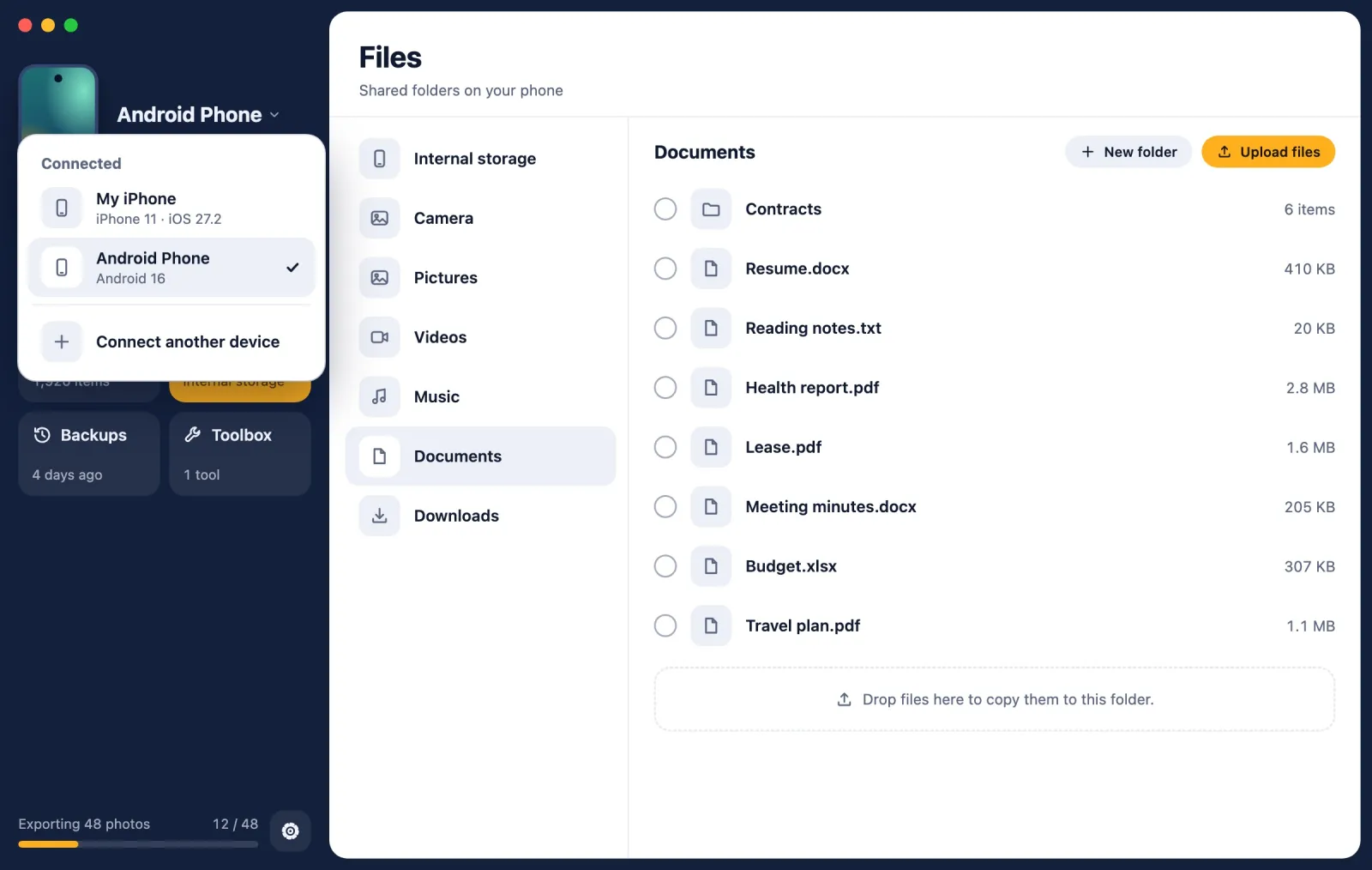
The device list showing an iPhone and an Android phone

Files

Drop files on the window to send them to your phone

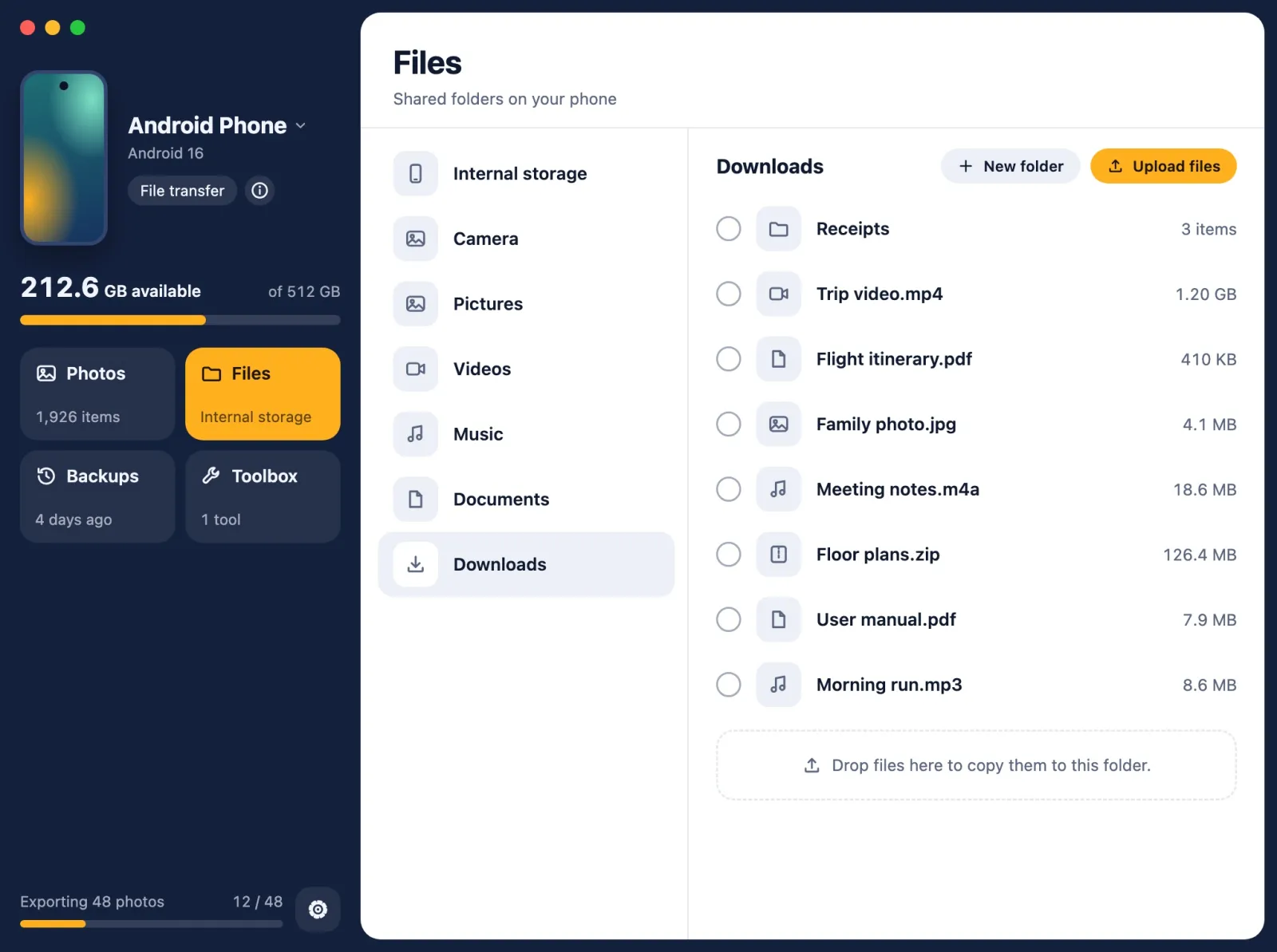
On Android, browse the folders on your phone, then download, upload, create folders, and delete. On iPhone and iPad, open an app that supports file sharing, save its documents to your Mac, or put files from your Mac into it, like a movie into your video player.

The Downloads folder on an Android phone

Photos & videos

Exported as they are. No compression, no format change.

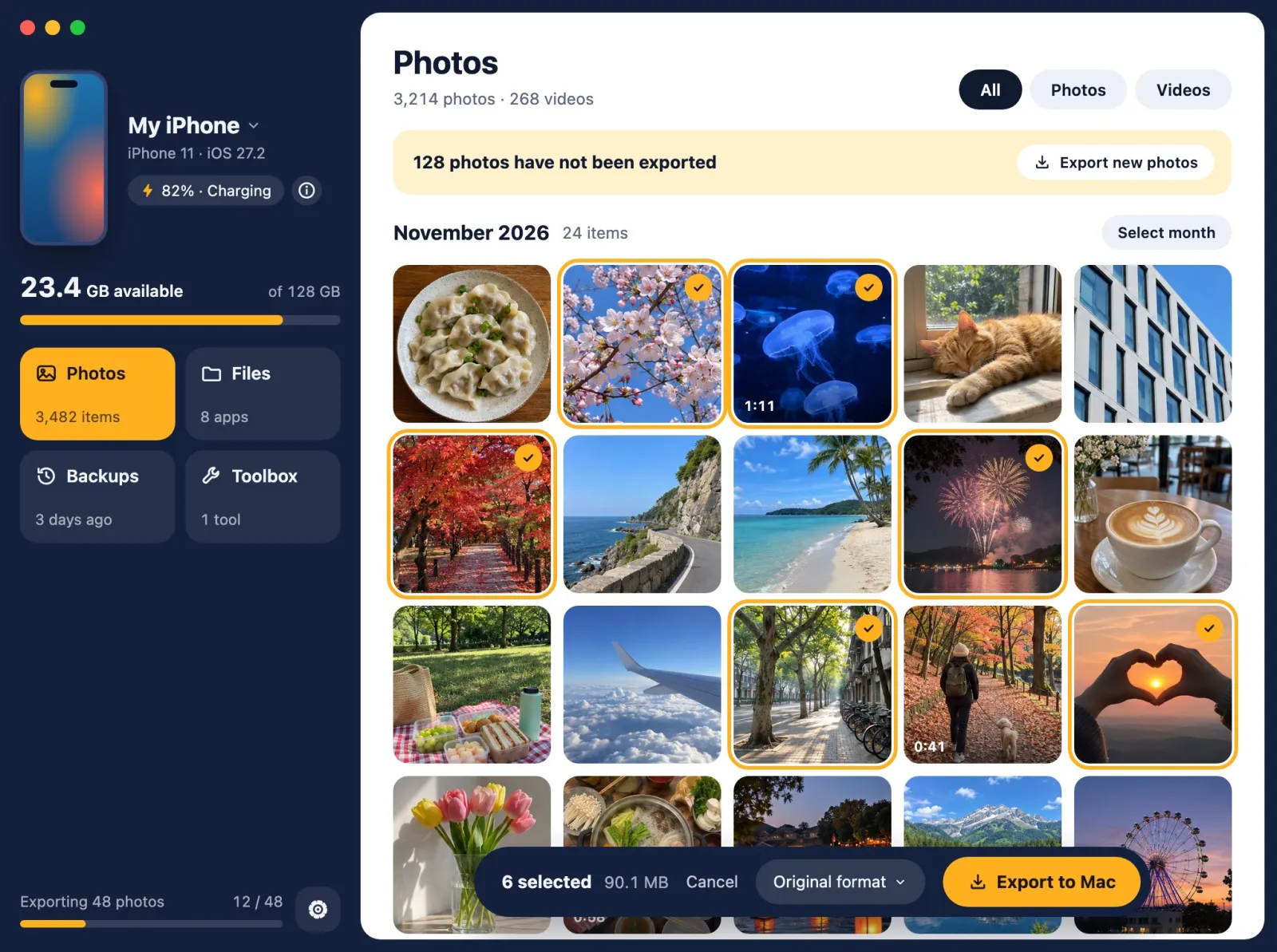
Browse photos and videos by month and open any photo for a closer look. Export your selection to any folder or an external drive, or drag it straight to Finder. Convert to JPG as you export when you need a file that opens anywhere.

Six photos selected with the Export to Mac bar at the bottom

Regular photo backups

Next backup, only the new photos

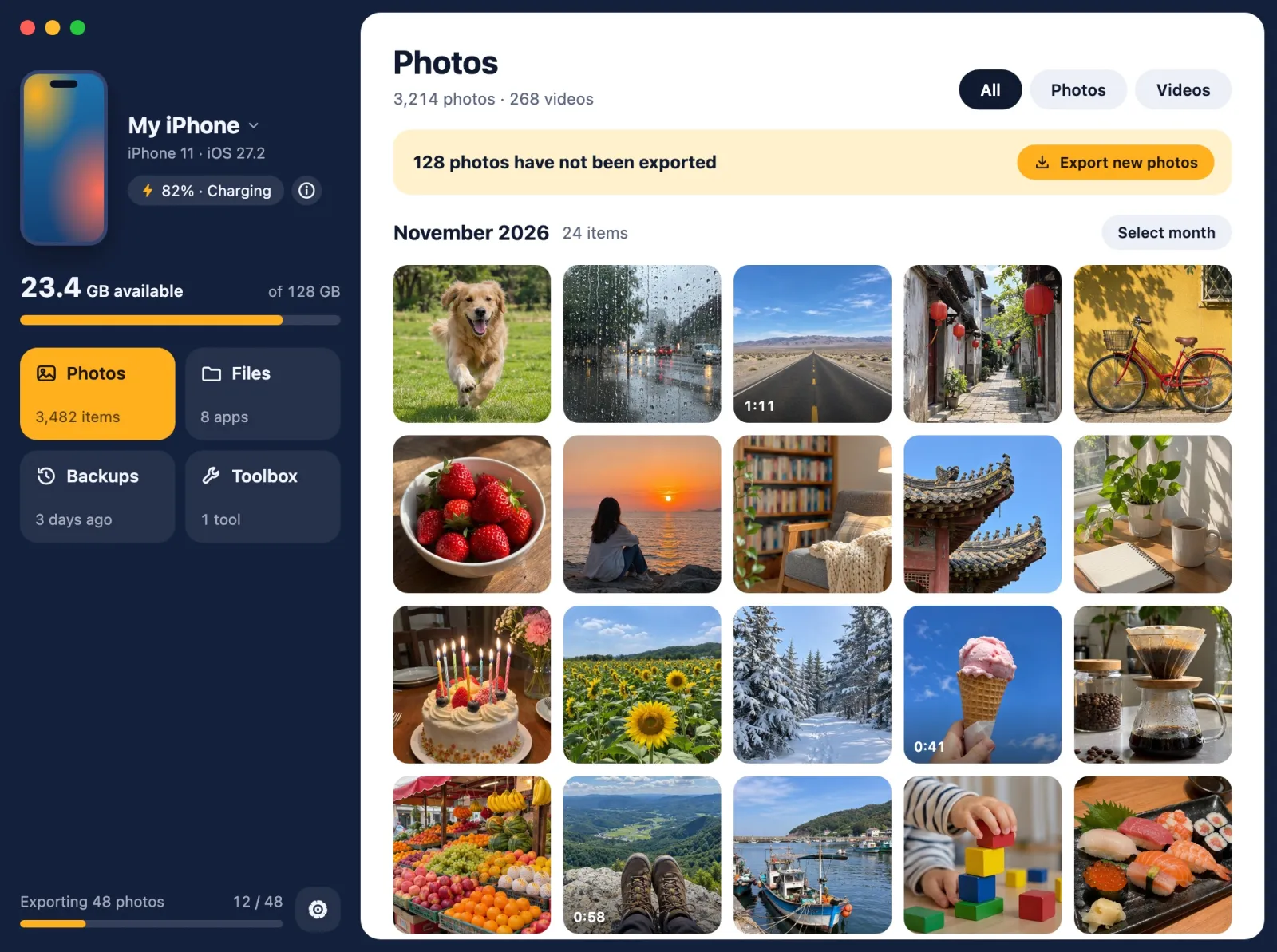
Homeport remembers which photos this Mac has already exported from each phone. Next time you plug in, export just the ones you haven't, without picking through everything again.

A banner on the Photos page showing how many photos have not been exported

iPhone battery

See how worn your battery is

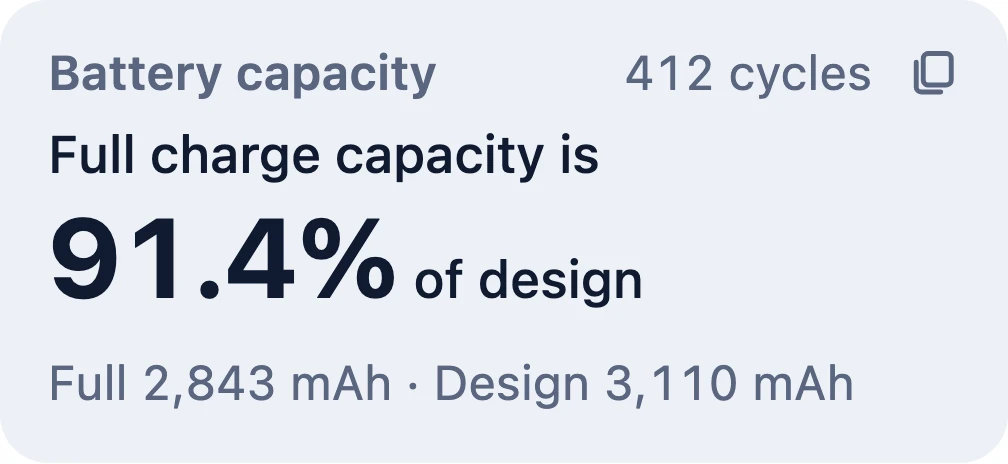
Device information shows the battery's design capacity, current full charge capacity, and cycle count, with full charge capacity as a share of design.

Where supported.

Battery capacity in Device information: full charge capacity is 91.4% of design, 412 cycles

Full backup

Back up the whole device to an external drive

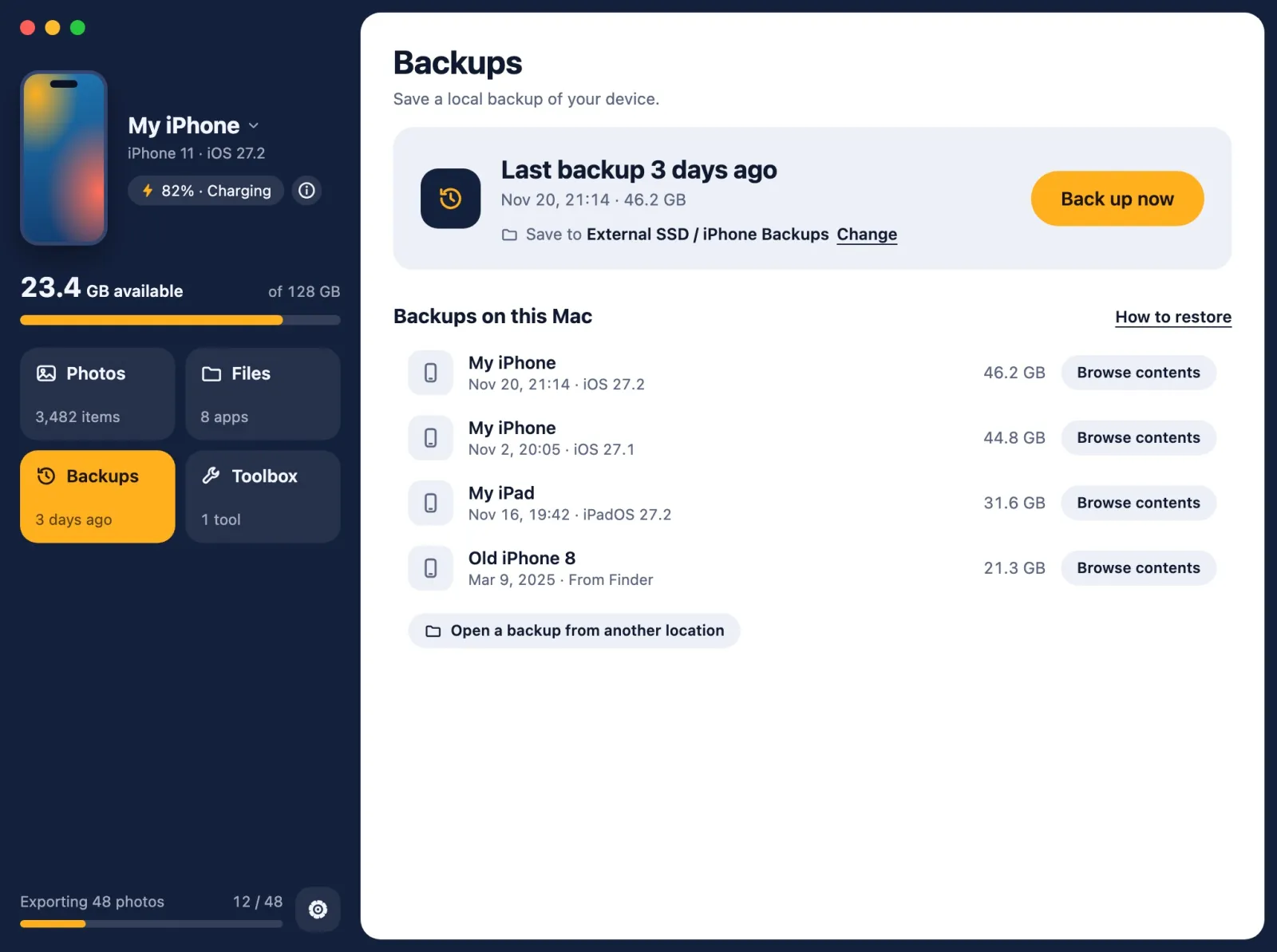
Save a full iPhone or iPad backup straight to an external drive, even when your Mac is short on space. Backups use the same format as Finder: to restore, copy the backup back to your Mac and restore in Finder. You can also open an existing backup to view and export its contacts.

The Backups page saving to an external drive

Also

Device details

Model, storage, serial number, and more. Click any value to copy it.

HEIC to JPG or PNG

Convert HEIC photos so they're easy to share and open on older devices.

Android folder backup

Pick folders such as Camera, Pictures, and Documents and save them to your Mac in one go.

Your content stays between your phone and your Mac

Photos, files, and backups are never uploaded to any server. No account, no ads.

Read the privacy policy →

Good to know

  • Requires macOS 27 or later and a USB cable that carries data.
  • The first time you connect an iPhone or iPad, use the accessory menu in the Mac menu bar to assign it to Homeport, then tap Trust on the device.
  • On Android, choose File transfer in the phone's USB options.
  • Originals stored only in iCloud, and not on the phone, can't be exported.
More connection and usage help →

Homeport

Manage the photos and files on your phone over a cable.

Coming soon to the Mac App Store